Re: Powershell log directly to NLS
Posted: Sat May 16, 2015 12:11 pm
Jesse,
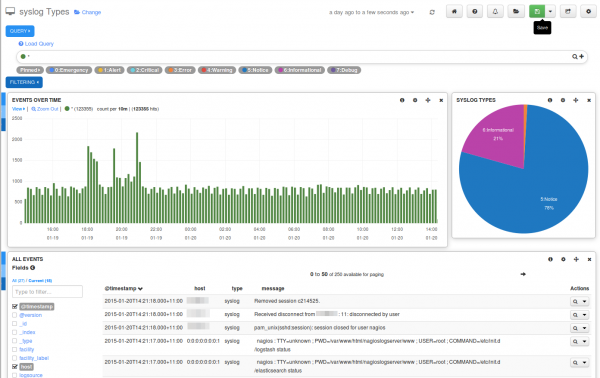
I tried some new thing with my Powershell function. So I'm catching some disk load related counters from perfmon, put them in my custom ps object, convert it to json, send it to NLS and I'm able to plot the numeric values of avgdiskreadsec and avgdiskwritesec in a histogram. What I don't seem to be able to do is plot two numeric fields in one histogram. Any idea if this is possible yet?
This is the script in case you would want to test:
See screenshot for the result.. To be honest I'm kind of looking if I can use NLS to do Grafana like things, see also thread http://support.nagios.com/forum/viewtop ... 38&t=32862
Plotting multiple lines is kind of important to be able to compare metrics imho.
Grtz
Willem
I tried some new thing with my Powershell function. So I'm catching some disk load related counters from perfmon, put them in my custom ps object, convert it to json, send it to NLS and I'm able to plot the numeric values of avgdiskreadsec and avgdiskwritesec in a histogram. What I don't seem to be able to do is plot two numeric fields in one histogram. Any idea if this is possible yet?
This is the script in case you would want to test:
Code: Select all
Function Send-JsonOverTcp {
    param ( [ValidateNotNullOrEmpty()]
        [string] $NagiosLogServer,
        [int] $Port,
        $JsonObject )
    $JsonString = $JsonObject -replace "`n",' ' -replace "`r",' ' -replace ' ',''
    $Ip = [System.Net.Dns]::GetHostAddresses($NagiosLogServer)
    $Address = [System.Net.IPAddress]::Parse($Ip)
    $Socket = New-Object System.Net.Sockets.TCPClient($Address,$Port)
    $Stream = $Socket.GetStream()
    $Writer = New-Object System.IO.StreamWriter($Stream)
    $Writer.WriteLine($JsonString)
    $Writer.Flush()
    $Stream.Close()
    $Socket.Close()
}

Function Get-PerformanceCounterLocalName {
	param (
		[UInt32]$ID,
    	$ComputerName = $env:COMPUTERNAME )

  	$code = '[DllImport("pdh.dll", SetLastError=true, CharSet=CharSet.Unicode)] public static extern UInt32 PdhLookupPerfNameByIndex(string szMachineName, uint dwNameIndex, System.Text.StringBuilder szNameBuffer, ref uint pcchNameBufferSize);'
  	$Buffer = New-Object System.Text.StringBuilder(1024)
  	[UInt32]$BufferSize = $Buffer.Capacity
  	$t = Add-Type -MemberDefinition $code -PassThru -Name PerfCounter -Namespace Utility
  	$rv = $t::PdhLookupPerfNameByIndex($ComputerName, $id, $Buffer, [Ref]$BufferSize)
  	if ($rv -eq 0) {
    	$Buffer.ToString().Substring(0, $BufferSize-1)
  	}
  	else {
    	Throw 'Get-PerformanceCounterLocalName : Unable to retrieve localized name. Check computer name and performance counter ID.'
  	}
}

#$JsonObject = (New-Object PSObject | Add-Member -PassThru NoteProperty name 'Json Smurf' |  Add-Member -PassThru NoteProperty age 34 | Add-Member -PassThru NoteProperty hobbies ('Monitoring','Testing','Breaking')) | ConvertTo-Json

$JsonStruct = New-Object PSObject -Property @{
    hostname = ([System.Net.Dns]::GetHostByName((hostname.exe)).HostName).tolower();
	username = [Environment]::UserName;
	avgdisksecread_c = '';
    avgdisksecwrite_c = '';
}
#| ConvertTo-Json

$DiskStruct = @{}
	[string]$DiskStruct.DiskLetter = 'C'
	[int]$DiskStruct.LogicalDiskId = 236
	[int]$DiskStruct.AvgDiskSecReadId = 208
	[int]$DiskStruct.AvgDiskSecReadValue = 0
	[int]$DiskStruct.AvgDiskSecWriteId = 210
	[int]$DiskStruct.AvgDiskSecWriteValue = 0
	[int]$DiskStruct.AvgDiskReadQueueId = 1402
	[int]$DiskStruct.AvgDiskReadQueueValue = 0
	[int]$DiskStruct.AvgDiskWriteQueueId = 1404
	[int]$DiskStruct.AvgDiskWriteQueueValue = 0
	[int]$DiskStruct.DiskReadsSecId = 214
	[int]$DiskStruct.DiskReadsSecValue = 0
	[int]$DiskStruct.DiskWritesSecId = 216
	[int]$DiskStruct.DiskWritesSecValue = 0
	[int]$DiskStruct.DiskReadBytesSecId = 220
	[int]$DiskStruct.DiskReadBytesSecValue = 0
	[int]$DiskStruct.DiskWriteBytesSecId = 222
	[int]$DiskStruct.DiskWriteBytesSecValue = 0

$PerfCounterArray = @()

$LogicalDisk = Get-PerformanceCounterLocalName $DiskStruct.LogicalDiskId

$AvgDiskSecRead = Get-PerformanceCounterLocalName $DiskStruct.AvgDiskSecReadId
$PerfCounterArray += "\$LogicalDisk($($DiskStruct.DiskLetter):)\$AvgDiskSecRead"

$AvgDiskSecWrite = Get-PerformanceCounterLocalName $DiskStruct.AvgDiskSecWriteId
$PerfCounterArray += "\$LogicalDisk($($DiskStruct.DiskLetter):)\$AvgDiskSecWrite"

$AvgDiskReadQueue = Get-PerformanceCounterLocalName $DiskStruct.AvgDiskReadQueueId
$PerfCounterArray += "\$LogicalDisk($($DiskStruct.DiskLetter):)\$AvgDiskReadQueue"

$AvgDiskWriteQueue = Get-PerformanceCounterLocalName $DiskStruct.AvgDiskWriteQueueId
$PerfCounterArray += "\$LogicalDisk($($DiskStruct.DiskLetter):)\$AvgDiskWriteQueue"

$AvgDiskReadsSec = Get-PerformanceCounterLocalName $DiskStruct.DiskReadsSecId
$PerfCounterArray += "\$LogicalDisk($($DiskStruct.DiskLetter):)\$AvgDiskReadsSec"

$AvgDiskWritesSec = Get-PerformanceCounterLocalName $DiskStruct.DiskWritesSecId
$PerfCounterArray += "\$LogicalDisk($($DiskStruct.DiskLetter):)\$AvgDiskWritesSec"

$AvgDiskReadBytesSec = Get-PerformanceCounterLocalName $DiskStruct.DiskReadBytesSecId
$PerfCounterArray += "\$LogicalDisk($($DiskStruct.DiskLetter):)\$AvgDiskReadBytesSec"

$AvgDiskWriteBytesSec = Get-PerformanceCounterLocalName $DiskStruct.DiskWriteBytesSecId
$PerfCounterArray += "\$LogicalDisk($($DiskStruct.DiskLetter):)\$AvgDiskWriteBytesSec"

$Duration = 0

do {
	$PfcValues = (Get-Counter $PerfCounterArray -MaxSamples 1)
	$JsonStruct.avgdisksecread_c = ($PfcValues[0].CounterSamples[0].CookedValue) * 10000
	$JsonStruct.avgdisksecwrite_c = ($PfcValues[0].CounterSamples[1].CookedValue) * 10000
	$Duration += 1
    $Json = $JsonStruct | ConvertTo-Json
    Write-Host "AvgDiskSecRead_C = $JsonStruct.avgdisksecread_c"
    Write-Host "AvgDiskSecWrite_C = $JsonStruct.avgdisksecwrite_c"
    Send-JsonOverTcp nagioslogserver  5551 "$Json"

}
while ($Duration -le 100)
Plotting multiple lines is kind of important to be able to compare metrics imho.
Grtz
Willem
 You can close this up now.