Page 2 of 3
Re: How to complete installing a plugin from Nagios Exchange
Posted: Tue Aug 01, 2017 4:59 pm
by tgriep
Can you post the Nagios configuration file for that server so we can view it?
It looks like the service check is missing for the Exchange check.
Re: How to complete installing a plugin from Nagios Exchange
Posted: Tue Aug 01, 2017 9:38 pm
by rafael
I uploaded nagios.cfg file. Kindly help me check. Thanks.
Re: How to complete installing a plugin from Nagios Exchange
Posted: Wed Aug 02, 2017 9:43 am
by tmcdonald
That's the main Nagios configuration file. We need to see the config file for the specific server that you are trying to monitor.
Re: How to complete installing a plugin from Nagios Exchange
Posted: Wed Aug 02, 2017 8:22 pm
by rafael
If i understood you, that is NSClient++ which i installed on Exchange Server. See nsclient.ini as attached file.
Kindly feedback again if i was wrong. Thank you!
Re: How to complete installing a plugin from Nagios Exchange
Posted: Thu Aug 03, 2017 2:49 pm
by lmiltchev
Did you place your PS script in "C:\NagiosMonitoring\"? Usually, scripts are placed in the "C:\Program Files\NSClient++\scripts" directory. Try moving your script there, then change your command from this:
Code: Select all
LyncFrontendServicesCheck=cmd /c echo C:\NagiosMonitoring\NagiosMonitoring_Exchange2016_Services.ps1 | PowerShell.exe -Command -
to this:
Code: Select all
LyncFrontendServicesCheck=cmd /c echo scripts\NagiosMonitoring_Exchange2016_Services.ps1; exit $LastExitCode | powershell.exe -command -
and restart the NSClient++ service.
Test it by running the following command from the command line on the Nagios XI server:
Code: Select all
/usr/local/nagios/libexec/check_nrpe -H <client ip> -c LyncFrontendServicesCheck
If you are still having issues, load all of the "defaults" in the nsclient.ini file by running the following in the CMD Prompt on the Windows machine as administrator:
Code: Select all
cd "C:\Program Files\NSClient++"
nscp settings --generate --add-defaults --load-all
Next, upload the updated nsclient.ini file on the forum. We may need to tweak some of the settings in there.
Re: How to complete installing a plugin from Nagios Exchange
Posted: Fri Aug 04, 2017 3:02 am
by rafael
Hello,
I followed up your instruction steps and here is report. Hope you find the problem. Thanks
1) Output command
Service OK: All services are up and running
2) Output command "nscp settings --generate --add-defaults --load-all"
C:\Program Files\NSClient++>nscp settings --generate --add-defaults --load-all
l scripts\commands.hpp:100 Failed to parse arguments for command 'LyncFrontendS
ervicesCheck', using old split string method: unknown escape sequence: cmd /c ec
ho scripts\NagiosMonitoring_Exchange2016_Services.ps1; exit $LastExitCode | powe
rshell.exe -command -
Adding default values
3) See newest nsclient.ini as attached.
By the way, Anyone share me the photo of final result if there is sucesfulled configure.
Re: How to complete installing a plugin from Nagios Exchange
Posted: Fri Aug 04, 2017 3:47 pm
by cdienger
Hi rafael,
If you're getting:
Code: Select all
Service OK: All services are up and running
that means the plugin is up and running. Not sure why you're getting the parsing message but the config appears to be good and returning what you'd want now.
Re: How to complete installing a plugin from Nagios Exchange
Posted: Fri Aug 04, 2017 8:43 pm
by rafael
Hi cdienger,
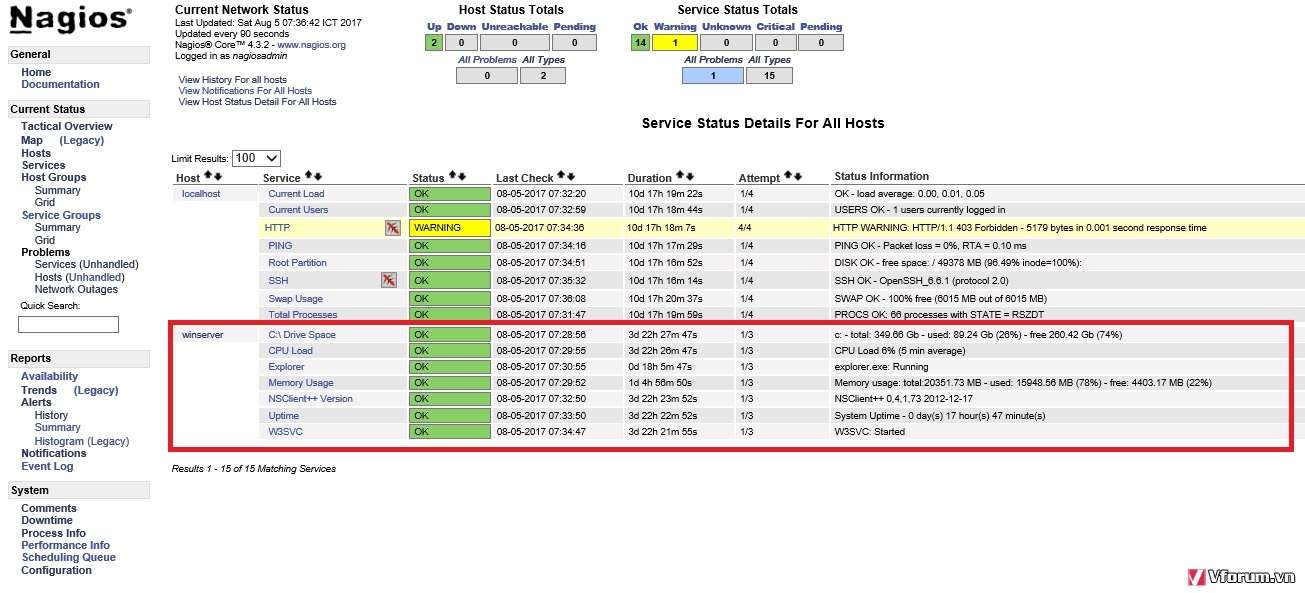
Now, I'd like to look the results/achieves. Where can i find it ? What's all Exchange services state information ? I could only view like photo below.
Re: How to complete installing a plugin from Nagios Exchange
Posted: Mon Aug 07, 2017 9:53 am
by rafael
Any one can show me the result sample ? And where can i find it on my Nagios ?
Thanks.
Re: How to complete installing a plugin from Nagios Exchange
Posted: Mon Aug 07, 2017 12:22 pm
by cdienger
The script will return a result like this if all services are up and running:
Service OK: All services are up and running
To see the results you must create config for this check Under Configure > CCM > Services. For example: