;)

;)
;)

;)
;)
;)

;)
;)
;)
;)
;)
;)
;)
;)
;)
;)

;)
;)
;)
;)
;)
;)
;)
;)
;)
;)
;)

Overview
This KB article explains how you can enable debug logging with the PHPMailer to troubleshoot SMTP mail sending problems.
The PHPMailer is used in Nagios Fusion and Nagios XI for sending emails using SMTP. If your system is configured for Sendmail then this KB article does not apply to you.
Enable Debug Logging
To enable debug logging you need to edit the class.phpmailer.php file and define the following:
public $SMTPDebug = 4;
By default the value is set to 0.
The following commands will make that change for you:
Nagios Fusion
cd /usr/local/nagiosfusion/html/includes/utils/phpmailer/
sed -i 's/public \$SMTPDebug.*/public \$SMTPDebug = 4;/g' class.phpmailer.php
Nagios XI
Older OS versions:
cd /usr/local/nagiosxi/html/includes/phpmailer/
sed -i 's/public \$SMTPDebug.*/public \$SMTPDebug = 4;/g' class.phpmailer.php
Newer OS versions:
To enable debug logging you need to edit the utils-email.inc.php file and define the following:
// $mail->SMTPDebug = 4;
By default the value is commented out. We need to initially uncomment.
cd /usr/local/nagiosxi/html/includes/
sudo sed -i 's|// \$mail->SMTPDebug = 4;|\$mail->SMTPDebug = 4;|' utils-email.inc.php
If the value has previously been uncommented and set to 0 (disabled), use the below command to set the value to 4 (enabled).
sed -i s/'mail->SMTPDebug = 0;'/'mail->SMTPDebug = 4;'/1 /usr/local/nagiosxi/html/includes/utils-email.inc.php
Proceed to the next section to view the debug output.
View Debug Output
To view the debug output you need to send a test email.
Nagios Fusion
Open the Nagios Fusion web interface and navigate to Admin > System Configuration > Email Settings.
Click the Send a Test Email button which will then take you to the Test Email Settings page.
Here you need to click the Sent Test Email button.
Nagios XI
Open the Nagios XI web interface and navigate to Admin > System Config > Manage Email Settings.
Click the Send a Test Email button which will then take you to the Test Email Settings page.
Here you need to click the Sent Test Email button.
The output generated from the test will be placed as raw text at the top of the page, here is an example:
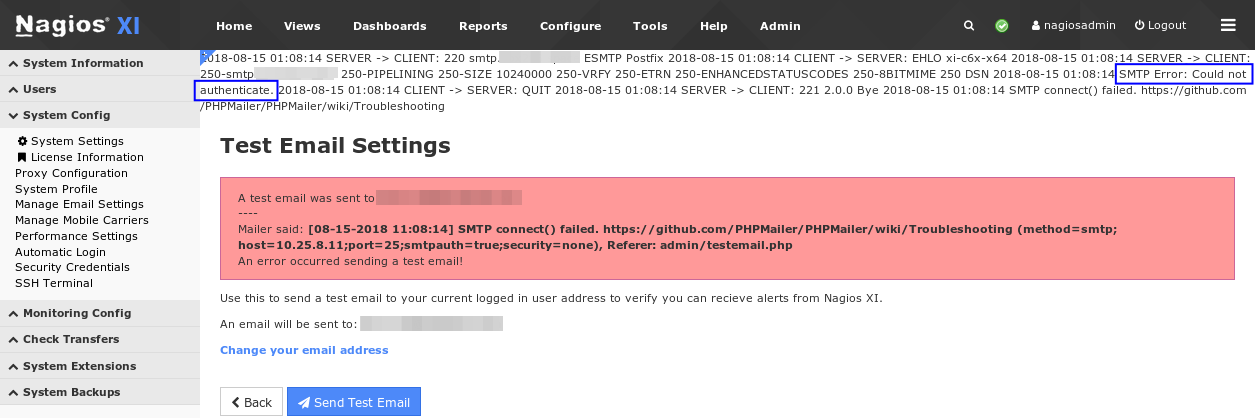
You can see in the screenshot above that there was an authentication issue. The output you see on your screen will be different and you can use that output to further troubleshoot your SMTP problems. Please refer to the following link for troubleshooting resources:
Troubleshooting PHPMailer Problems
Disable Debug Logging
When you no longer require the debug logging you will need to disable it by editing the class.phpmailer.php file and define the following:
public $SMTPDebug = 0;
The following commands will make that change for you:
Nagios Fusion
cd /usr/local/nagiosfusion/html/includes/utils/phpmailer/
sed -i 's/public \$SMTPDebug.*/public \$SMTPDebug = 0;/g' class.phpmailer.php
Nagios XI
Older OS versions:
cd /usr/local/nagiosxi/html/includes/phpmailer/
sed -i 's/public \$SMTPDebug.*/public \$SMTPDebug = 0;/g' class.phpmailer.php
Newer OS versions:
cd /usr/local/nagiosxi/html/includes/
sudo sed -i 's|\$mail->SMTPDebug = .*|\$mail->SMTPDebug = 0;|' utils-email.inc.php
Final Thoughts
For any support related questions please visit the Nagios Support Forums at:

 Subscribe to Article
 Print Article
 Email Article to Friend
 Export to PDF
 Export to MS Word
